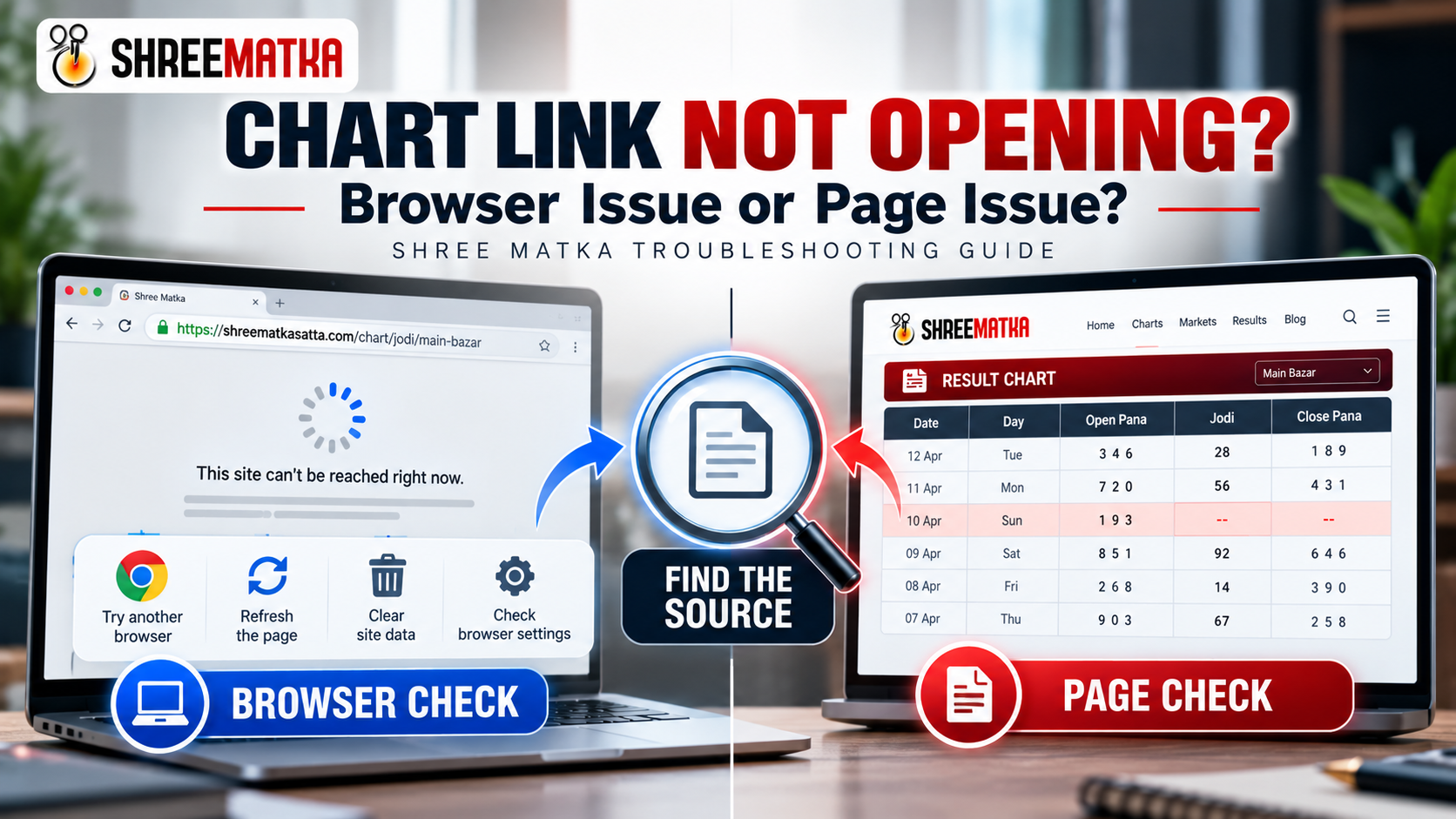
Opening a historical Matka chart should be instant and seamless. Whether checking historical records for Kalyan, Main Bazar, or specialized archives like Ratan Khatri, the page should deliver a responsive grid of weekly Pana and Jodi entries.
Occasionally, a link fails to open. You might see a blank white page, an endlessly spinning loading indicator, a browser-generated connection error code, or an official website message stating that the chart is unavailable.
When this happens, jumping to conclusions is easy: visitors often assume the entire website is down, or conversely, that their phone is malfunctioning. In reality, web navigation involves multiple layers: the URL syntax, your local browser profile, your network connection, and the web server itself.
ERR_INTERNET_DISCONNECTED) is technically distinct from an HTTP 404 response returned by the server or an application glitch on an otherwise loaded page.
First, Check the Chart Link Itself
Before diagnosing complex device or network settings, inspect the exact address in your browser's address bar. Mismatched or corrupted links are the single most common cause of chart access failures.
On the Shree Matka platform, chart routes follow predictable, standardized naming conventions:
- Jodi Charts:
https://shreematkasatta.com/chart/jodi/{market-slug}(e.g.,/chart/jodi/kalyan,/chart/jodi/milan-day) - Panel / Pana Charts:
https://shreematkasatta.com/chart/pana/{market-slug}(e.g.,/chart/pana/kalyan,/chart/pana/main-bazar) - Starline Charts:
https://shreematkasatta.com/chart/starline/{game-slug} - Jackpot Charts:
https://shreematkasatta.com/chart/jackpot/{market-slug}
Check the following syntax details:
- Look for Trailing Characters: Links copied from chat applications (such as WhatsApp or Telegram) frequently append accidental punctuation—like a period, comma, or quotation mark at the end of the URL (e.g.,
.../chart/pana/kalyan.). Even a single trailing character prevents the server from recognizing the market slug. - Avoid Spaces & Accidental Encodings: A space inside the address bar converts to
%20, resulting in an unmapped route. - Navigate via the Official Directory: If you are relying on an old browser bookmark or a forwarded link from several months ago, the market name might have been renamed or retired. Instead of manually editing the address, visit the Official Shree Matka Charts Directory. The directory automatically generates verified, canonical links to every active Jodi, Panel, Starline, and Jackpot table.
Step One — Check Whether Other Websites Open
The fastest way to test basic internet availability is to open two or three completely unrelated, reputable websites in new tabs (for example, a major news portal or search engine).
How to interpret the outcome:
- Multiple Websites Fail: If other websites also fail to load, your internet connection, mobile data balance, airplane mode setting, or local Wi-Fi router is involved. The issue is not specific to Shree Matka.
- Other Websites Open Normally: If general browsing works smoothly, connectivity exists. The investigation narrows to the specific Shree Matka link, your browser's stored site data, or a temporary route issue.
- Only Shree Matka Fails: While this narrows the scope, it does not immediately prove a server outage. Local DNS caching, browser extensions, or network-level firewall filtering may be singling out the domain. Continue to Step Two.
Step Two — Try the Same Chart in Another Browser
Modern smartphones and computers usually have more than one browser installed (such as Chrome, Safari, Samsung Internet, Firefox, or Microsoft Edge). Testing the identical link in an alternate browser provides immediate diagnostic clarity:
-
Copy the Full AddressTap or click the address bar, select the complete URL, and copy it to your clipboard.
-
Open a Different Trusted BrowserLaunch a secondary browser that is already installed on your device.
-
Paste and LoadPaste the exact URL directly into the address bar and press Enter.
Interpreting the Result:
- Opens in the Second Browser: The website and server are fully operational. The failure in your primary browser is almost certainly caused by local extensions, an outdated cache, corrupted service-worker data, or specific browser security settings.
- Fails in Both Browsers: The issue exists outside a single browser profile. It could involve local network filtering, an invalid URL, or a page-level server issue. Proceed to Step Three.
Step Three — Try a Private or Incognito Window
When you browse in an Incognito (Chrome) or Private Browsing (Safari/Firefox) window, the browser runs in a clean temporary session:
- Existing stored cookies and site cache are temporarily bypassed.
- Most third-party browser extensions (including ad blockers, translation plugins, and script interceptors) are disabled by default.
How to Interpret Private Browsing Results:
- The Chart Loads in Private Mode: This confirms that your device and the server are communicating successfully. The issue in your standard window is caused by stored site data or an active extension. You can resolve this by temporarily toggling off extensions or clearing cache specifically for
shreematkasatta.comwithout deleting your global browser history. - The Chart Still Fails in Private Mode: Local cache and extensions are ruled out. Proceed to Step Four.
Step Four — Compare Wi-Fi and Mobile Data
Local networks can behave very differently from cellular data providers. If you are currently connected to home Wi-Fi, office internet, or a public hotspot, disconnect from Wi-Fi and load the exact same chart link over your phone's cellular mobile data (4G/5G).
Why this diagnostic comparison matters:
- DNS Resolver Differences: Home routers frequently use your broadband provider's default DNS, which can take longer to propagate updated IP addresses. Cellular carriers use independent, high-speed mobile DNS clusters.
- Local Network Filtering: Some public or corporate Wi-Fi networks block specific web categories or gaming information portals by default.
Evaluation: If the chart loads immediately on cellular data but refuses to open on Wi-Fi, the root cause is local router configuration, firewall restrictions, or Wi-Fi DNS routing. If it fails on both trusted networks, the likelihood of a route or page-level issue increases.
What Different Browser Error Messages Can Tell You
When a web page cannot be displayed, modern web browsers generate specific error messages. Recognizing the difference between a local browser error and a server response helps determine the next logical step:
| Observed Message or Symptom | What It Technically Indicates | Recommended Next Step |
|---|---|---|
ERR_NAME_NOT_RESOLVED |
Your browser could not convert the domain name (shreematkasatta.com) into an IP address via DNS. |
Check internet connection, verify hostname spelling, or switch between Wi-Fi and mobile data. |
ERR_INTERNET_DISCONNECTED |
The device has no active network interface or internet route. | Check Wi-Fi connection, disable airplane mode, or verify mobile data toggle. |
ERR_CONNECTION_TIMED_OUT |
The device contacted the network, but the server or intermediate gateway did not respond before timeout. | Check network speed, disable high-latency VPNs, or test in an alternate browser. |
ERR_CONNECTION_RESET |
The TCP connection was abruptly closed or interrupted during transit. | Reload the page; check for unstable network drops or local firewall filtering. |
| Website Page: 404 Not Found ("Chart Not Available") |
The server responded normally, but no chart exists for the requested market slug. | Do not blame the browser. Open the Charts Directory to click the verified active link. |
| HTTP 500 / 502 / 503 Server Error | An unexpected error or temporary gateway timeout occurred on the web server. | Wait a few minutes, re-check via directory, and report the specific URL if persistent. |
| Blank Screen / Endless Spinning | The base HTML loaded, but rendering stalled (e.g. an extension blocked scripts or styles). | Test in an Incognito window; temporarily disable ad blockers or script-filtering extensions. |
| SSL / Certificate Warning | The browser cannot verify the secure HTTPS handshake certificate. | Do not bypass the warning. Confirm you are on the authentic official domain: https://shreematkasatta.com/. |
https://shreematkasatta.com/.
Browser Problem or Page Problem? Use This Quick Comparison
Use this decision matrix to summarize your findings before deciding whether to adjust device settings or reach out to support:
| What You Observe During Testing | What the Evidence Suggests | Best Action to Take |
|---|---|---|
| Works in another browser on the same phone | Original browser profile, extension, or cache issue | Test private tab; clear site cache in the original browser |
| Opens in a private/incognito window only | Active extension or corrupted cookie/storage data | Review installed extensions; toggle off blockers for the site |
| Fails on Wi-Fi, but opens instantly on Mobile Data | Local Wi-Fi router DNS cache or network-level restriction | Use mobile data or restart the Wi-Fi router to flush local DNS |
| Multiple unrelated websites (e.g. Google) also fail | Broader device network or cellular connectivity outage | Check airplane mode, data balance, or signal strength |
| One chart returns "Chart Not Available", but other charts load | Outdated bookmark, mistyped slug, or retired market URL | Navigate through /charts directory to locate the current link |
| Same chart fails across multiple browsers and multiple networks | Likely a genuine page route or server-side issue | Prepare a concise bug report and notify official support |
When to Contact Shree Matka Support
Once you have completed the basic isolation steps, you will know whether the issue requires local troubleshooting or an administrative review.
You should contact the Shree Matka support team when:
- The chart link fails across at least two separate browsers and two different network connections (such as both Wi-Fi and mobile data).
- Clicking a link from the official Charts Directory consistently returns a
404 Chart Not Availableor500 Server Errorpage. - The page loads its title and navigation header, but the central chart container displays a permanent server-side database error.
What Information Should You Include in a Bug Report?
When reporting a technical website issue, providing exact technical parameters enables the development team to test and reproduce the fault immediately.
Include the following information in your inquiry:
- The Complete URL: Paste the full link exactly as it appears in your browser address bar.
- Market or Chart Name: Specify whether you were looking for a Jodi, Pana, or Starline table.
- Date and Timestamp: Note when you attempted to access the page (including AM/PM and time zone).
- Device & Operating System: Specify whether you are using Android, iOS, Windows, or macOS.
- Browser Name & Version: e.g., Google Chrome 129, Safari iOS 18, or Firefox.
- Exact Error Symptom: State whether you saw a browser error code (e.g.
ERR_CONNECTION_TIMED_OUT), a website 404 screen, or a blank page. - Diagnostic Cross-Checks: Briefly mention that you tested an alternate browser or mobile network.
Subject: Shree Matka Chart Link Not Opening

Hello Shree Matka Support Team,

I am having trouble opening a chart page on the website.

Chart or market name: [Enter name if known, e.g. Kalyan Day Panel Chart]
Exact URL: [Paste the complete chart link]
Date and time of issue: [Enter date, time, and time zone]
Device and browser: [e.g. Android 14, Chrome mobile browser]
Error message or symptom: [Copy exact error code or describe blank page]
Other pages tested: [e.g. Homepage and /charts directory open normally]
Other browser/network tested: [e.g. Tested on Firefox and over mobile data; same result]
Screenshot: [Attach screenshot of the error screen]

Could you please check whether this link or page route is currently available?

Thank you.
Safe Troubleshooting: What Not to Do
When troubleshooting website access, maintaining personal security is essential. Some common online suggestions are ineffective or expose your device to risk:
- DO NOT Install Unverified APKs or Extensions: Never download unknown third-party apps, unauthorized VPNs, or browser "helper" extensions promising to fix website links. Only download the official app directly from our verified Shree Matka APK download page.
- DO NOT Use Unofficial Mirror Sites: Unverified copycat websites often scrape stale data and can inject unwanted advertisements or phishing scripts. Always verify that you are on
shreematkasatta.com. - DO NOT Share Account Credentials: Technical link troubleshooting does not require your account password, login PIN, OTP, or financial details. Official support will never request account secrets.
- DO NOT Delete All Browser Data First: Clearing all cookies and cache removes your saved logins across every site you visit. Always test in an Incognito window first, and clear site-specific data for
shreematkasatta.comonly if private browsing succeeds.
Frequently Asked Questions
Find quick answers to common chart link and browser troubleshooting questions:
Conclusion & Key Takeaways
Separating a browser problem from a website issue requires methodical testing rather than guesswork:
- Verify the Address: Confirm there are no trailing periods, spaces, or misspellings in the URL.
- Use the Charts Hub: Access tables directly through the official /charts directory rather than unverified third-party links.
- Isolate the Environment: Test an alternate browser, an incognito session, and switch between Wi-Fi and cellular data.
- Read the Error Clues: Differentiate client-side network error codes (
ERR_...) from server responses (404/500). - Report with Evidence: If the link fails across multiple browsers and networks, use our template to send a complete report to official support.