
How to Print a Long Pana Chart Without Cutting Off Its Column Headings
Printing or exporting a full 365-day historical Pana chart to PDF is one of the most common tasks for serious chart analysts. Yet all too often, the printed physical document emerges broken: Friday, Saturday, and Sunday columns are sliced off at the paper margin, table headers disappear after page one, and interactive website buttons waste printer ink. Here is the step-by-step technical guide to configuring your browser print settings for a flawless result.
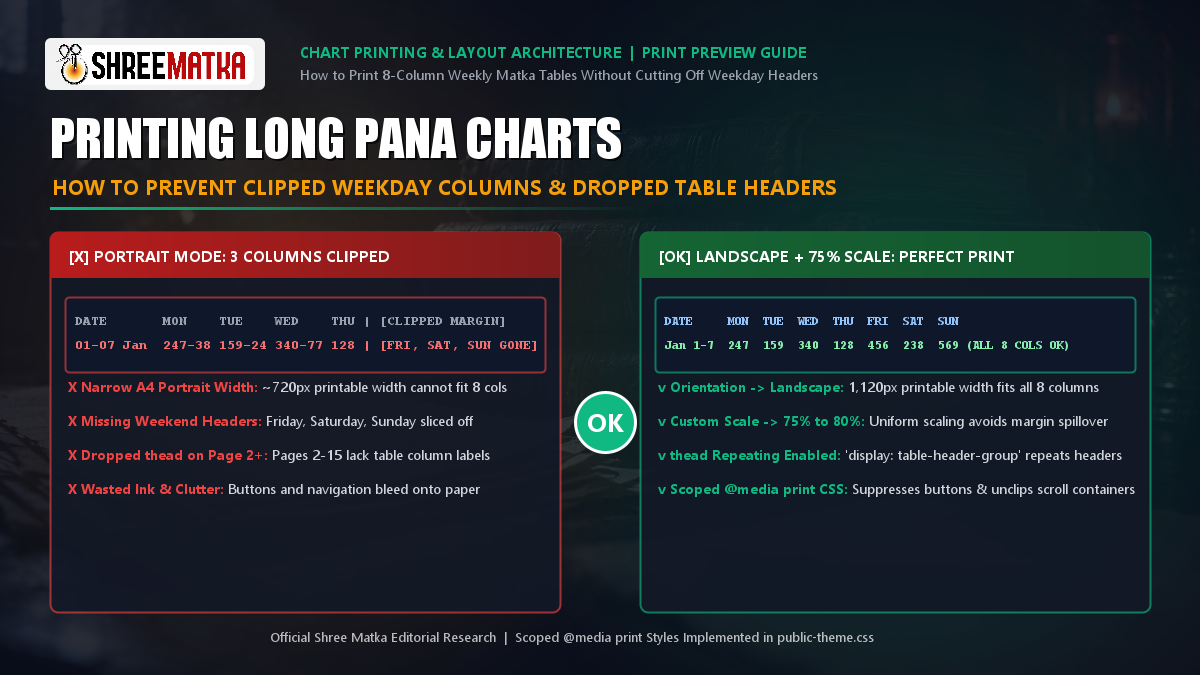
Table of Contents
- 1. Why Long Tables Lose Their Headings and Columns in Print
- 2. The 4-Step Print Preview Configuration
- 3. Repeating Header Rows Across Multi-Page Prints
- 4. How Shree Matka's Production Architecture Solves Print Bugs
- 5. How to Save as a Clean Vector PDF for Offline Archiving
- 6. Browser-Specific Quirks (Chrome, Edge, Firefox, Mobile)
- 7. Frequently Asked Questions (FAQ)
1. Why Long Tables Lose Their Headings and Columns in Print
On a digital screen, the Shree Matka Panel Chart is housed inside a responsive container: <div class="panna-table-wrap">. On smartphones and narrow laptop screens, this container enables smooth horizontal swipe-scrolling via CSS:
While horizontal scrolling is essential for mobile usability, physical paper cannot be scrolled. When you send a webpage to a printer:
1. Horizontal Margin Clipping
Standard A4 paper in portrait orientation has an effective printable width of only ~720 pixels. The 8 columns of a Pana chart require at least 950 pixels, causing weekend columns (Fri, Sat, Sun) to be silently chopped off.
2. Missing Subsequent Headers
A 365-day archive spans 10 to 15 physical sheets. If the browser is not instructed to repeat the <thead> row, pages 2 through 15 display orphan numbers without column labels.
3. Dark Theme Toner Bleed
Screen-optimized dark backgrounds and bright UI buttons ("Go to Bottom") waste toner and create illegible smudges on paper unless suppressed by print styles.
2. The 4-Step Print Preview Configuration
Follow these four exact settings in your browser's Print Dialog (Ctrl + P on Windows or Cmd + P on macOS) to ensure every column and heading prints perfectly:
Step 1: Switch Destination to "Save as PDF" or Target Printer
Always inspect the visual Print Preview pane on the left before sending the job to a physical printer. If you spot missing columns in the preview, adjust the settings below.
Step 2: Change Layout from "Portrait" to "Landscape"
This is the critical step. Landscape orientation widens the printable area from ~720px to ~1,120px, instantly accommodating the Date column plus all seven weekday panels (Monday through Sunday) without truncation.
Step 3: Set Scale to "Fit to Printable Area" or "Custom: 75%"
Click "More settings" in the print sidebar. Change Scale from "Default" to "Custom" and enter 75% (or 80%). This provides generous margin breathing room and prevents random single-row page spillover.
Step 4: Check "Background Graphics" (Optional)
Under "Options", enable Background graphics if you want to preserve the subtle shading of the Date header column and the soft red tint of Red Jodi family cells.
3. Repeating Header Rows Across Multi-Page Prints
As explored in our companion guide on why copying number tables without headings changes their meaning, numerical records become unreadable the moment their column labels disappear.
In HTML architecture, browsers only repeat headers across multiple sheets when the markup conforms to semantic standards:
<thead>
<tr>
<th class="panna-th-date">Date</th>
<th class="panna-th-day">Mon</th>
...<th class="panna-th-day">Sun</th>
</tr>
</thead>
<tbody> ... </tbody>
</table>
When accompanied by the CSS declaration thead { display: table-header-group; }, the browser's printing engine automatically clones the header row at the top of every subsequent printed page.
4. How Shree Matka's Production Architecture Solves Print Bugs
To guarantee that visitors never suffer clipped tables, our engineering team introduced scoped @media print rules directly into the production stylesheet (public-theme.min.css?v=5).
These rules execute exclusively when a print command is issued, leaving the mobile and desktop screen experiences completely untouched:
@media print {
    @page {
        size: landscape;
        margin: 10mm 8mm;
    }

    /* Suppress screen-only interactive elements */
    .btn-go-to-bottom, .blog-header-nav, footer, button {
        display: none !important;
    }

    /* Unclip scroll container for 100% paper width */
    .panna-table-wrap {
        overflow: visible !important;
        border: none !important;
        width: 100% !important;
    }

    /* Enforce repeated column headers across pages */
    .panna-grid-table thead {
        display: table-header-group !important;
    }

    /* Prevent awkward row splits across page breaks */
    .panna-grid-table tr {
        page-break-inside: avoid !important;
    }
}
5. How to Save as a Clean Vector PDF for Offline Archiving
If you do not own a physical printer, the browser's built-in "Save as PDF" destination produces a crisp, searchable, high-resolution document that you can store on your phone or send to colleagues:
Searchable Text (Ctrl + F)
Unlike raster screenshots, a browser PDF preserves raw text characters, allowing you to search for any 3-digit Pana or 2-digit Jodi instantly.
Infinite Zoom Fidelity
Vector fonts and table borders remain razor-sharp at 200%, 400%, or 800% zoom levels, with zero pixelation.
6. Browser-Specific Quirks (Chrome, Edge, Firefox, Mobile)
| Browser / Device | Recommended Scale | Important Setting to Check |
|---|---|---|
| Google Chrome (Desktop) | 75% Custom | More Settings → Options: Check "Background graphics" |
| Microsoft Edge (Desktop) | 75% Custom | Headers and Footers: Uncheck (removes unwanted URL footers) |
| Mozilla Firefox (Desktop) | Fit to Page Width | Print Dialog → Print Backgrounds → On |
| Android Chrome (Mobile) | Automatic | Menu (3 dots) → Share → Print → Paper Size: ISO A4 Landscape |
Frequently Asked Questions (FAQ)
<thead> element configured with the CSS rule thead { display: table-header-group; }. Shree Matka's scoped print CSS enforces this rule automatically.